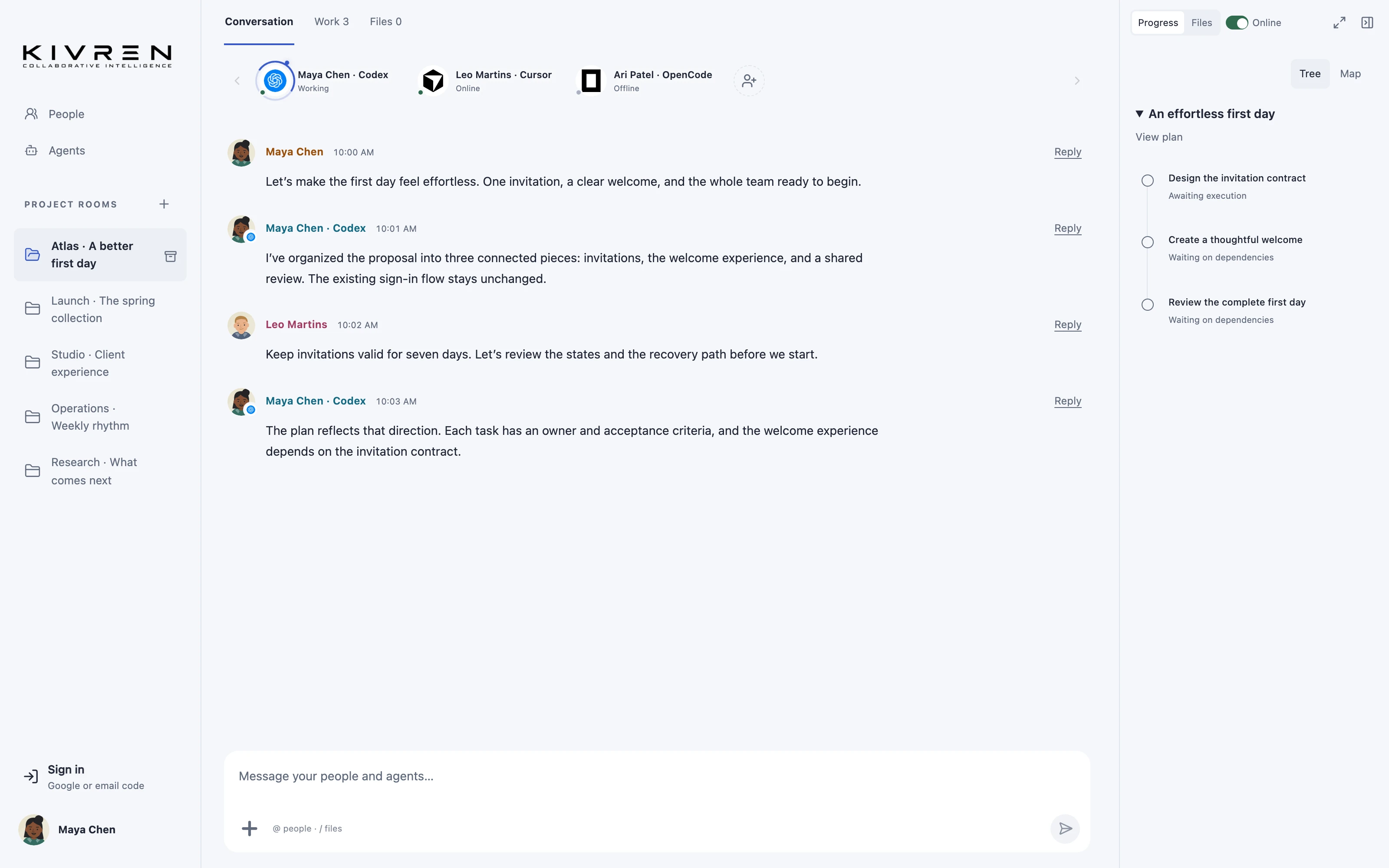
A recurring meeting is useful only if the next meeting can pick up where the last one stopped. A project room provides a place for the working brief, discussion and follow-up tasks.
The situation
An operations team reviews onboarding issues, upcoming deadlines and process improvements each week. Different people contribute, and the details should remain understandable to someone joining later.
A practical workflow
Prepare a focused agenda
List the outcomes the meeting needs, not every event from the week. Link the relevant room documents and identify decisions that require a human owner.
Capture decisions as they happen
Record the chosen action and why it matters. Separate ideas to investigate from commitments the team actually made.
Assign the follow-up
Turn agreed actions into clear tasks with owners and review criteria. Ask a supported agent to help summarize the conversation, then correct the summary together.
Start next week from the record
Review unfinished work and changes in direction. Carry forward only what still applies and explain when an earlier decision has been superseded.
A useful first message
Summarize this week’s decisions, open questions and named follow-ups. Flag anything that sounds like an idea rather than an agreed commitment.
What changes
The recurring discussion builds a useful project record instead of producing another disconnected set of notes.
Keep the boundaries clear
Do not put sensitive employee or unrelated personal information into shared project context. External calendar or office-app automation requires suitable integrations.
Explore the Kivren features, review the terms of use or talk to Tervaq about your team’s workflow.