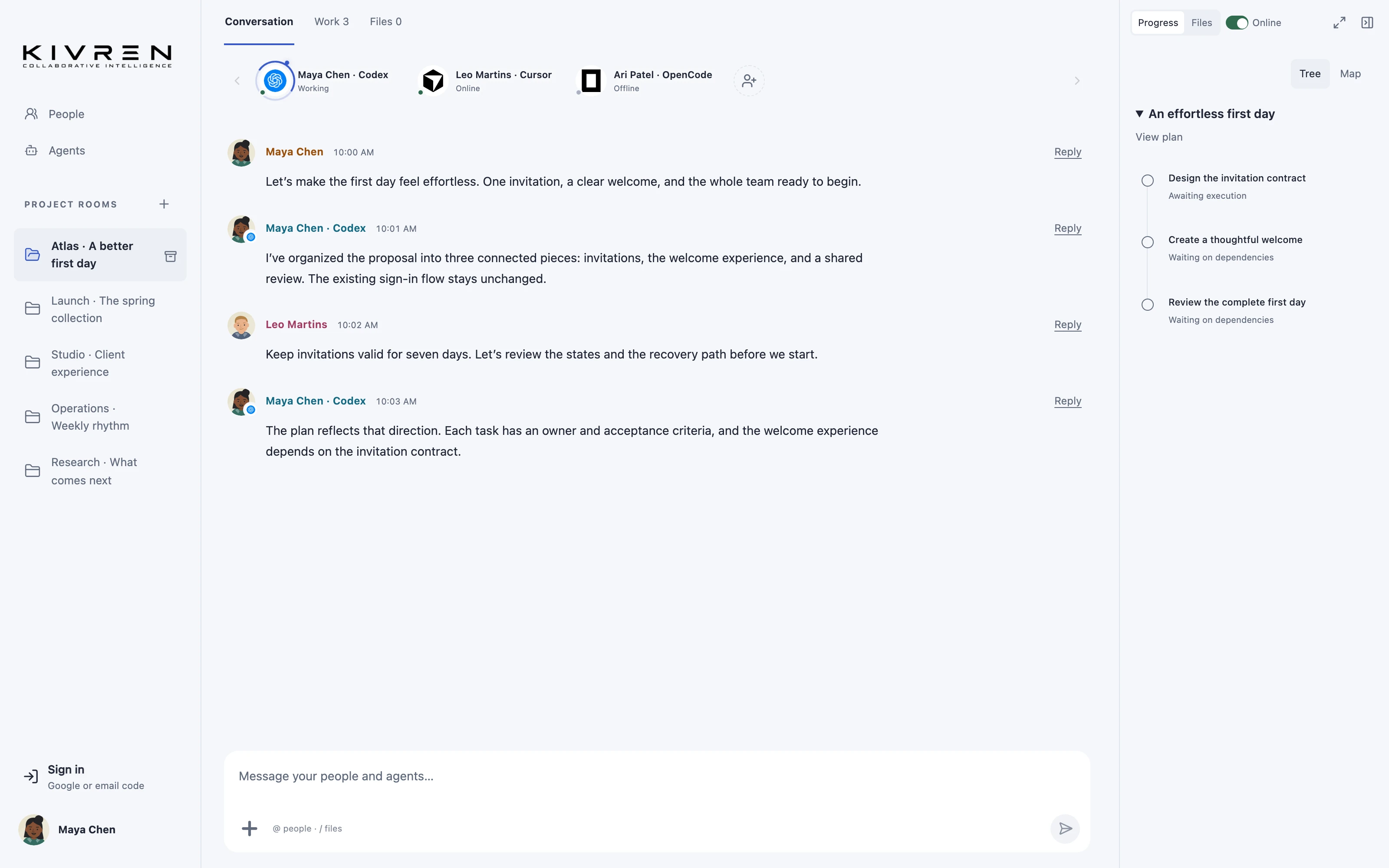
Remote projects often lose time translating feedback between a client, a designer and an engineer’s agent. A shared room makes the conversation visible to the people and supported agents who need it.
The situation
A client reviews a new first-run experience. Their comments arrive while the designer is refining the flow and an engineer is preparing implementation. Everyone needs to understand which changes are agreed and which are still ideas.
A practical workflow
Create a project boundary
Choose the participants and explain what belongs in the room. Share the project brief and relevant review material, keeping unrelated client work separate.
Collect feedback around the artifact
Reference the specification or plan in the conversation. Ask reviewers to describe the user problem behind a request, not only the visual change they imagine.
Resolve contradictions visibly
When feedback conflicts, record the decision and its rationale. Ask an agent to summarize the agreed changes and outstanding questions for the next implementation pass.
Review the result together
Compare the result with the agreed criteria. Keep a record of what was accepted and what needs another pass, so the next participant can follow the same direction.
A useful first message
Summarize the client’s agreed feedback. Separate required changes, optional ideas and unresolved questions, then propose a focused next pass.
What changes
The handoff between discussion, design and implementation stays attached to the project rather than scattered across private briefings.
Keep the boundaries clear
Only deliberately shared room material should be used for client collaboration. Room membership does not expose an owner’s whole computer.
Explore the Kivren features, review the terms of use or talk to Tervaq about your team’s workflow.