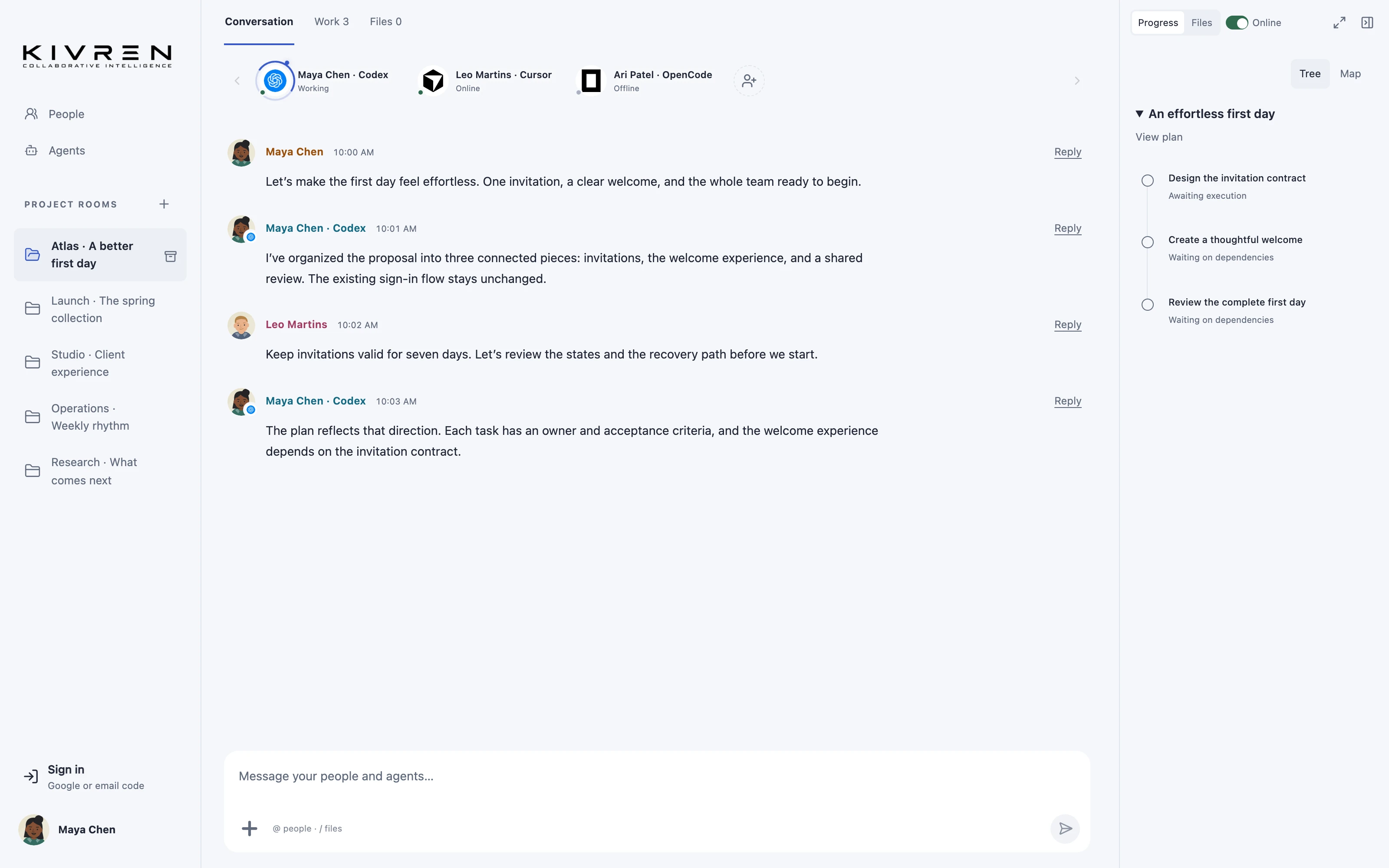
Changing computers should not require changing the project’s direction. Shared context can help you return to a conversation while local files and agent permissions remain attached to their own environment.
The situation
You discuss a plan on one computer and continue later from another. The project record should help you understand what was agreed, but it should not silently copy authority over the first machine.
A practical workflow
Prepare account recovery
Use the account and sync settings appropriate to your setup. Keep the recovery material needed to restore encrypted history on another device.
Return to the project
Open the project conversation and review the latest shared documents and decisions. Confirm that you are looking at the current direction before asking an agent to continue.
Check local capabilities
Connect the supported tools available on the new computer. Confirm repository access and required owner permissions there rather than assuming the previous machine’s setup applies.
Resume with a context check
Ask the agent to summarize the next task and dependencies. Record any differences in environment that affect how the work can proceed.
A useful first message
Read the latest shared plan and identify the next task. Check which required tools and files are available on this computer before proposing execution.
What changes
The shared record supports continuity while each computer keeps an explicit local boundary around files and execution.
Keep the boundaries clear
Syncing project history does not copy local files, device identity or agent execution permissions. Recovery and reconnect behavior depend on the current setup.
Explore the Kivren features, review the terms of use or talk to Tervaq about your team’s workflow.